Applying tools
 Version 1.0.6
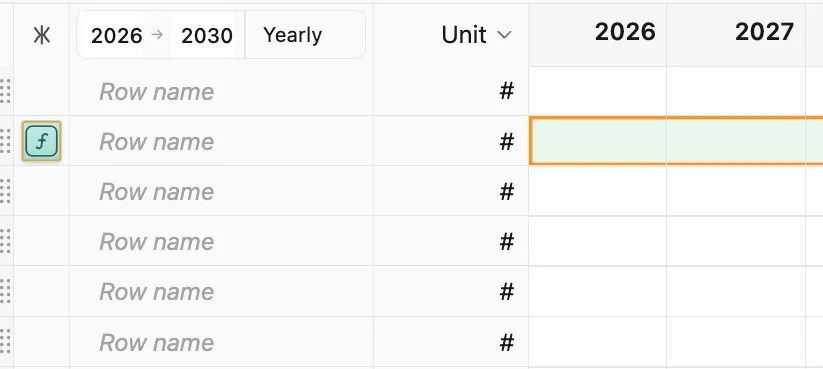
Tools are applied to rows, custom columns, and outputs by either:
-
Dragging and dropping from the Tools tab in the ribbon
-
Selecting one or more empty cells in a row, custom column, or output and clicking the desired tool
When a tool is drag-and-dropped from the ribbon into a row, it will automatically fill the entire row’s timeline or, if other tools exist in the row, the earliest empty cells in the row.
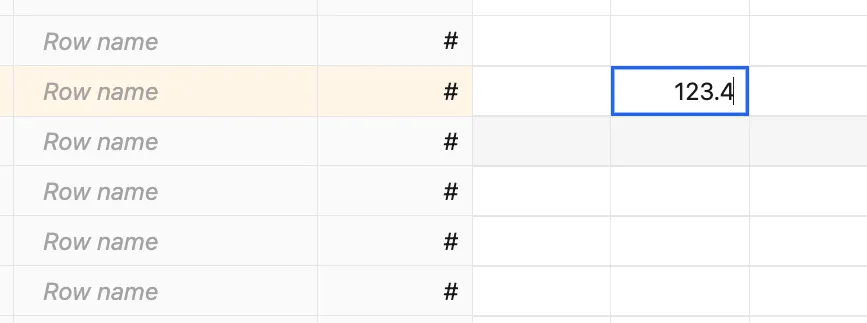
The input tool can also be applied automatically by entering a value into any empty cell.
 Version 1.0.6
Note: Custom columns and outputs can only hold a single tool.
Tool date range
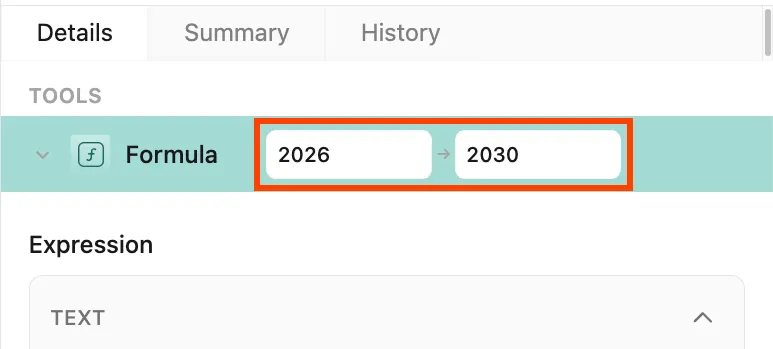
Section titled “Tool date range”When applied to a row, tools adopt a date range. The date range includes a start and end date that corresponds with the range of cells defined by the tool. Displayed in the Details tab of the control panel, the first value determines the leftmost column while the second value determines the rightmost column covered.
 Version 1.0.6
The interval (e.g., yearly, quarterly, monthly) of a tool’s date range is set when the tool is applied to the row. To apply the tool with a different time interval, select the desired interval in the timeline control before applying the tool to the row.