Formula box
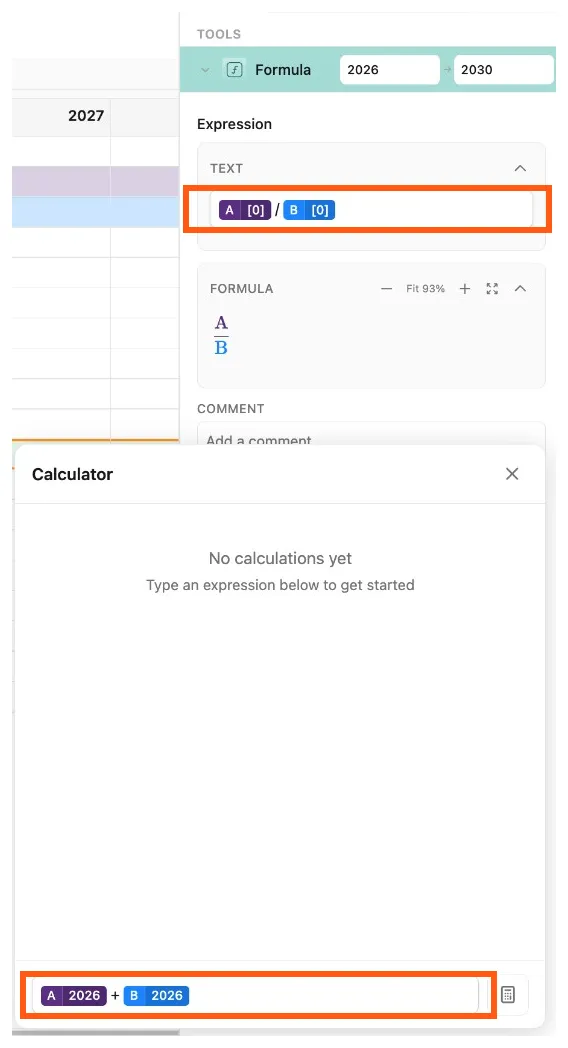
The formula tool and calculator solve equations created by the user in their respective formula boxes. This interface accepts combinations of tags, constants, and standard mathematical operators to create equations with dynamic references to rows, cells, variables, and other values in the Parfera file.
 Version 1.0.6
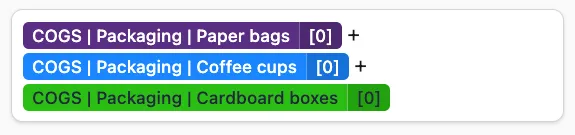
Tags are readable names that replace alphanumeric coordinates for every reference in Parfera. They maintain a living reference to their underlying value and update automatically with changes to that value, like cell references in Excel or Sheets. Tags are also used outside of formulas to specify references throughout tools and elements in Parfera.
 Version 1.0.6
Add a tag
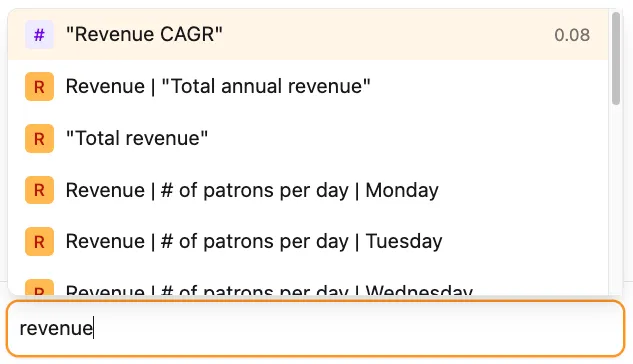
Section titled “Add a tag”Users add tags either by searching or by direct selection. To search for a tag, begin typing its name in the formula box and select from the list of suggestions. The tag will appear in the formula box and prompt the user to specify a date or offset if applicable.
 Version 1.0.6
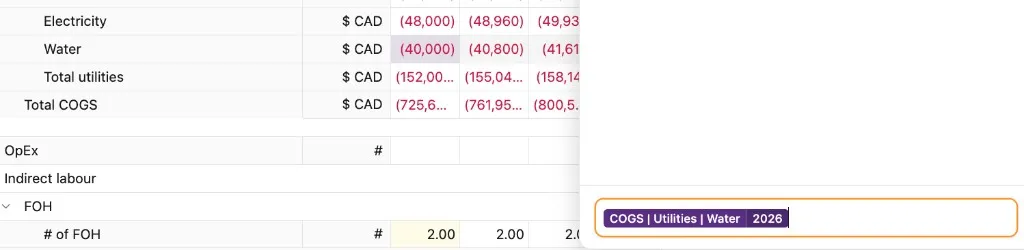
To directly select a tag, click on the desired reference in the file while the formula box is active and showing an orange border.
 Version 1.0.6
Edit a tag
Section titled “Edit a tag”Edit an existing tag by clicking on the tag to reactivate direct selection and open up the search dialog.
Delete a tag
Section titled “Delete a tag”Delete tags with the Backspace or Delete key in the same way as any other part of a typed expression.
Tag types
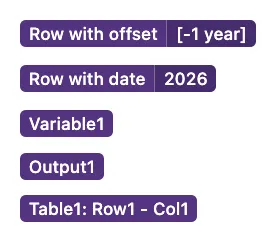
Section titled “Tag types”Nearly all values in a Parfera file can be referenced with a tag, including:
Note: As of version 1.0.4, custom column cells, sensitivity test results, and values from disabled scenarios cannot be referenced in formulas.
 Version 1.0.6
When referencing a cell in a row, tags include a date or offset specifier. Dates specify the column that the referenced cell is in.
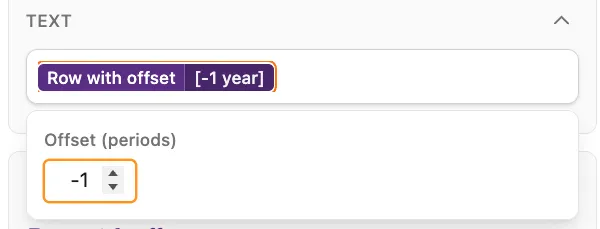
Offsets specify a left/right shift in the grid relative to the user’s current year/column, allowing the tool to reference values from a different time period when calculating a cell’s value (e.g., a -1 year offset results in a 2026 formula being calculated with a 2025 value).
Note: The interval (e.g., yearly, quarterly, monthly) of an offset matches the interval of the tool and is set when the tool is applied to the row. To apply the tool with a different time interval, select the desired interval in the timeline control before applying the tool to the row.
 Version 1.0.6
In tools applied to custom columns, the “Own row” tag is available. This tag references the same row that the formula result is presented in (i.e., “Own row” references Row1 in Row1, Row2 in Row2, Row3 in Row3, …).
 Version 1.0.6
Non-formula tags
Section titled “Non-formula tags”When specifying references outside of a mathematical formula, such as in a sensitivity test or statistics tool, a derivation of the formula box system is used. These inputs offer the same typing with autocomplete and click-to-select functionality to create tags, with appropriate restrictions on the type of tags created.
 Version 1.0.6
Constants
Section titled “Constants”Formula boxes accept constants (i.e., typed numbers) alongside tags and operators. Constants in formulas are not scaled to match the unit of the row or column.
Operators
Section titled “Operators”Formula boxes accept the standard mathematical symbols below.
| Symbol | Meaning |
|---|---|
| + | Addition |
| - | Subtraction |
| * | Multiplication |
| / | Division |
| ^ | Exponent |
| ( | Open parentheses |
| ) | Close parentheses |