Sensitivities
 Version 1.0.5
Sensitivity tests analyze how one model value, the Target, changes with variations of one or two other values, the Inputs. Instead of needing to manually create separate model infrastructure in Excel or Sheets, Parfera automates this process. The results are presented in a table that allows the user to easily understand how sensitive the target value is to changes in the input(s). Sensitivity test results are displayed on the Sensitivities tab at the bottom of the screen.
 Version 1.0.6
Create a sensitivity
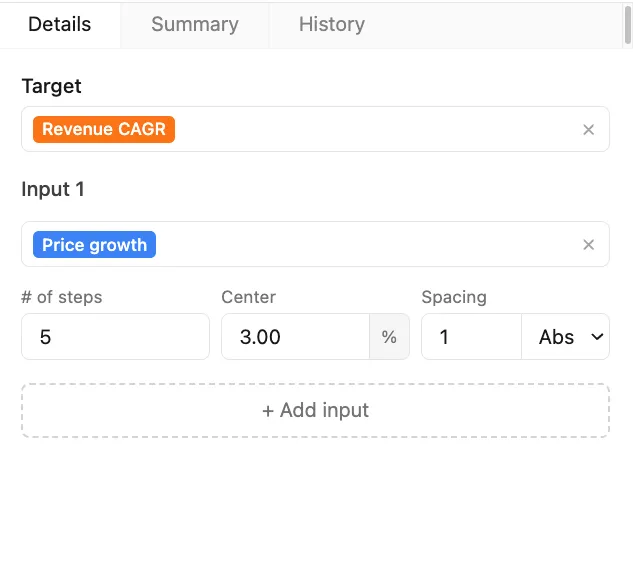
Section titled “Create a sensitivity”To create a sensitivity, click the Sensitivity button on the elements tab in the ribbon or navigate to the Sensitivities tab and press the + Add button. The sensitivity creation interface will appear in the control panel, including:
-
Target: Set the target value of the sensitivity that will be solved for and displayed in the results table
-
Input 1: Select the value to vary when solving for the Target
-
”#” of steps: Select the number of different values of Input 1 to use when solving for the Target
-
Center: Select the middle value for the steps of Input 1, defaults to the current model value of Input 1
-
Spacing: Set the spacing, either percentage or absolute, between steps of Input 1
-
Add input: Click to add Input 2
 Version 1.0.6
Edit a sensitivity
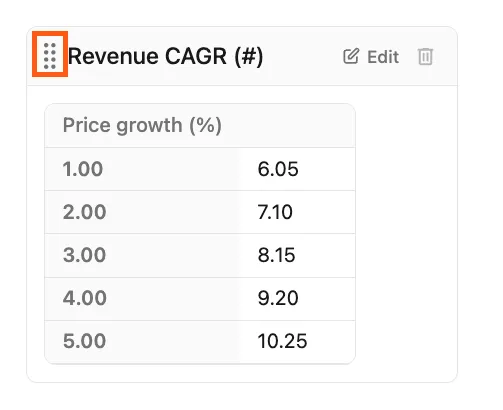
Section titled “Edit a sensitivity”To edit an existing sensitivity, navigate to the Sensitivities tab and click on the sensitivity results to reopen the sensitivity settings in the details tab of the control panel.
The order of sensitivities can be rearranged by clicking and dragging on the handle next to each sensitivity name.
 Version 1.0.6
Delete a sensitivity
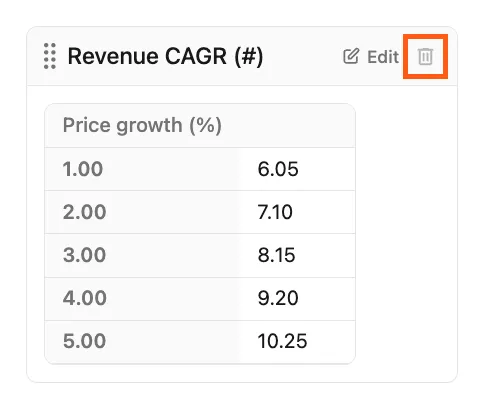
Section titled “Delete a sensitivity”To delete an existing sensitivity, navigate to the Sensitivities tab and click the delete button at the top of the sensitivity results.
 Version 1.0.6