Grid
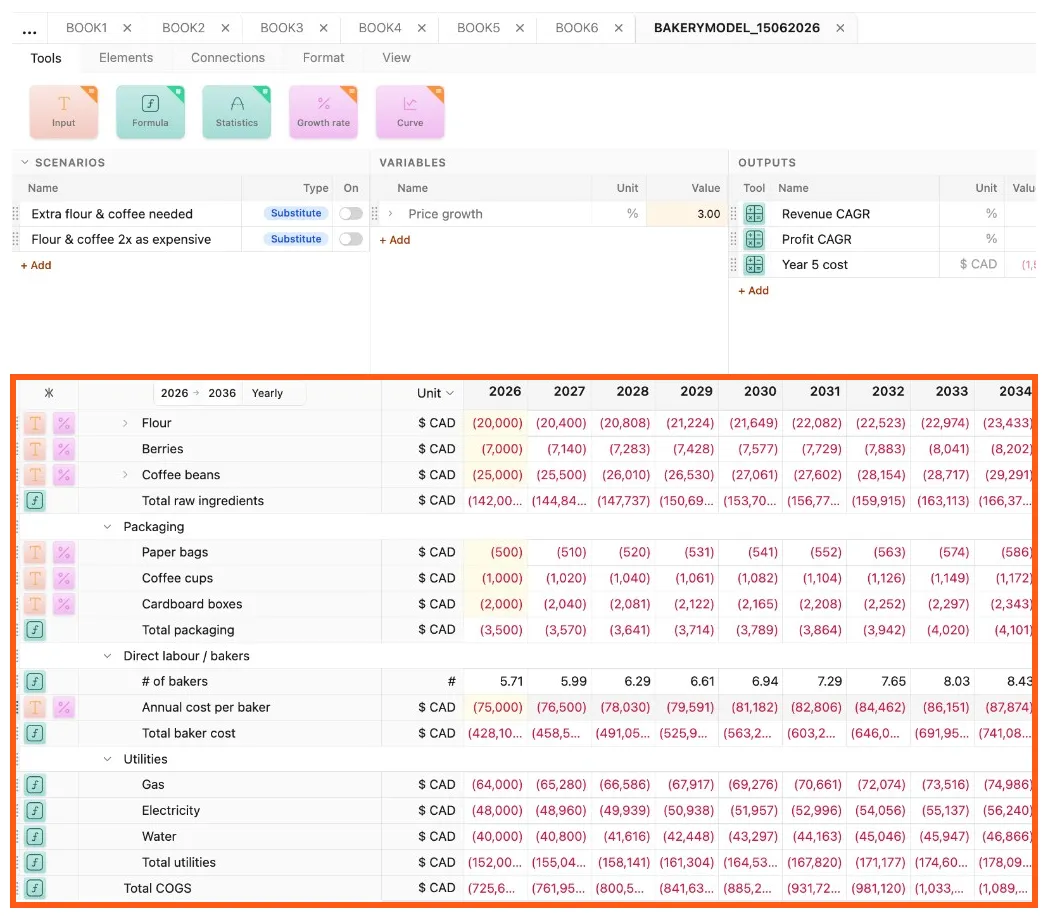
The grid is where values are stored and displayed, like a traditional spreadsheet. The grid is organized by rows, which are the core element of Parfera. Each row is defined by a name, unit type, data type, and one or more tools applied by the user. The values of each row are organized by the timeline, a series of consecutive time periods shown at the top of each column. Values in the grid are calculated by tools applied to each row of the model. Each tool covers a range of columns for a given row, as defined by a start and end date.
 Version 1.0.6
In addition to storing numerical values, the grid includes:
- Tool column: Where tools are applied from the ribbon via drag-and-drop to input data or create calculations for a given row
- Name column: Where row names are set and used as a reference throughout Parfera
- Unit/Data type column: Where the units used to determine how values are displayed in the grid are assigned to each row; it also displays row data types which are referenced by Interpolation
- To switch between the Unit and Data type columns, use the dropdown at the top of the column
- Timeline: Column headers determined by start date, end date, and interval set in the timeline controls
- Custom columns: Columns outside of the timeline – they each accept one tool to calculate totals, CAGRs, and other summaries of timeline data
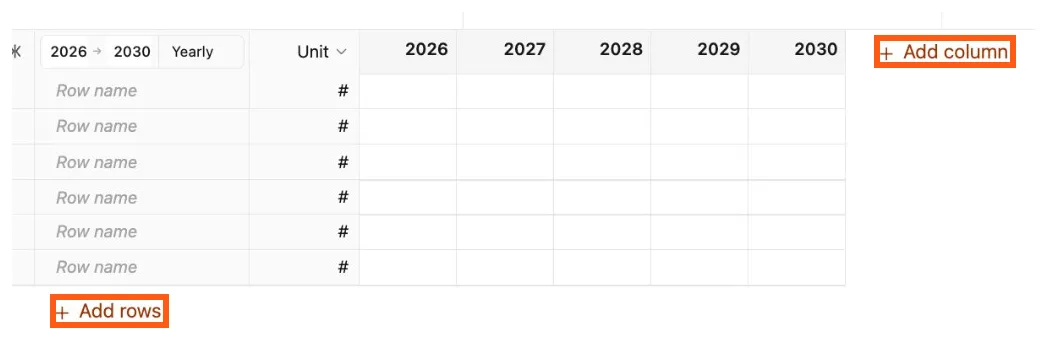
The size of the grid is adjusted by adding and deleting rows and adjusting the timeline date range and interval. Rows are added using the “+ Add row” button below the last row. Custom columns are added using the “+ Add column” button to the right of the last column.
 Version 1.0.6
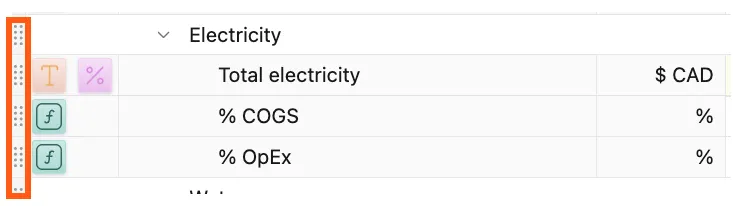
Rows can be reordered within the grid by clicking and dragging their handle visible at the left edge of the grid, or using keyboard shortcuts Alt + Up Arrow and Alt + Down Arrow.
 Version 1.0.6
The size of cells in the grid is adjusted by clicking and dragging between row or column headers, or on the view tab.
Style a row
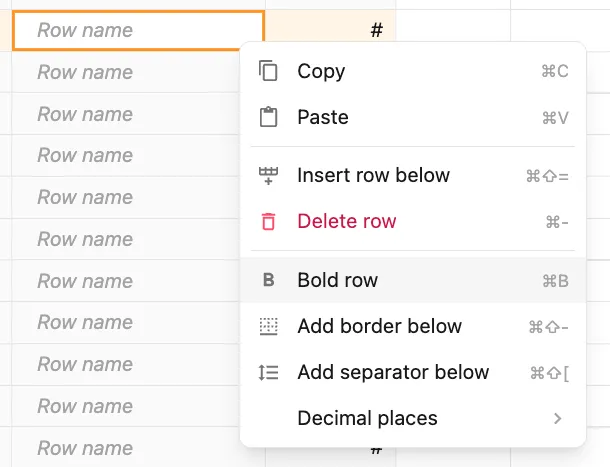
Section titled “Style a row”Rows can be bolded, given a border, or separated by a blank row to improve readability. They are applied and removed by right-clicking on cell in the grid and selecting the desired option.
 Version 1.1.0
Keyboard shortcuts
Section titled “Keyboard shortcuts”| Action | Windows | macOS |
|---|---|---|
| Insert row below | Ctrl + Shift + = | ⌘ + Shift + = |
| Delete row | Ctrl + - | ⌘ + - |
| Select row | Shift + Space | Shift + Space |
| Select column | Ctrl + Space | Ctrl + Space |
| Move row up | Alt + Up Arrow | ⌥ + Up Arrow |
| Move row down | Alt + Down Arrow | ⌥ + Down Arrow |
| Bold row | Ctrl + B | ⌘ + B |
| Add border below | Ctrl + Shift + Up Arrow | ⌘ + Shift + Up Arrow |
| Add border right | Ctrl + Shift + \ | ⌘ + Shift + \ |
| Add separator below | Ctrl + Shift + [ | ⌘ + Shift + [ |